
From first field
to first enquiry.
Follow a sample quote request from the dashboard to your website. Select any screenshot for a closer look.
Start where your forms live.
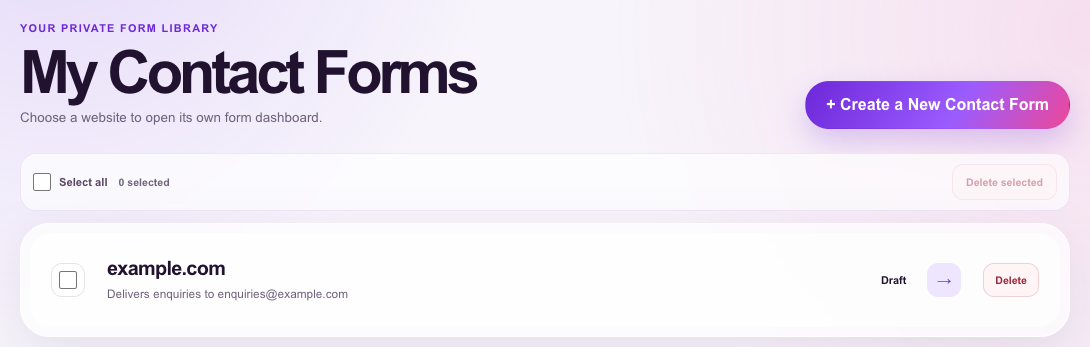
Open My Contact Forms in your dashboard and choose Create a New Contact Form. Enter the form name, website and email address for new enquiries.
- Use a template, start with an empty canvas or generate a starting design with AI.
- Find saved designs under My Contact Forms and reopen them whenever you need to make a change.
Start with the right questions.
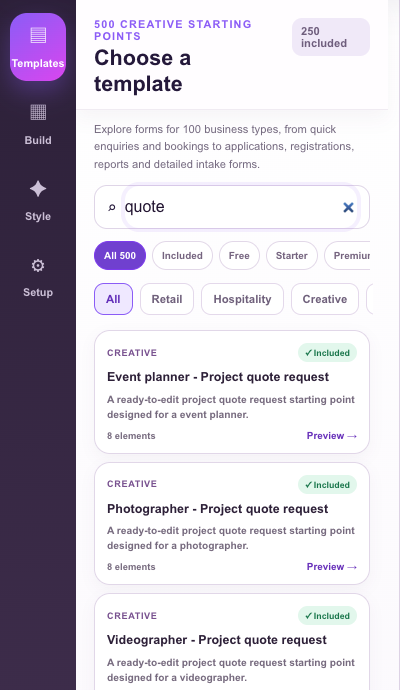
Explore 500 templates across 100 business types. Search by industry or purpose, then preview the fields before choosing a design.
- Find starting points for quotes, bookings, client intake, applications, feedback and registrations.
- Preview the entire catalogue. The number of templates you can apply depends on your plan.
Ask for exactly what you need.
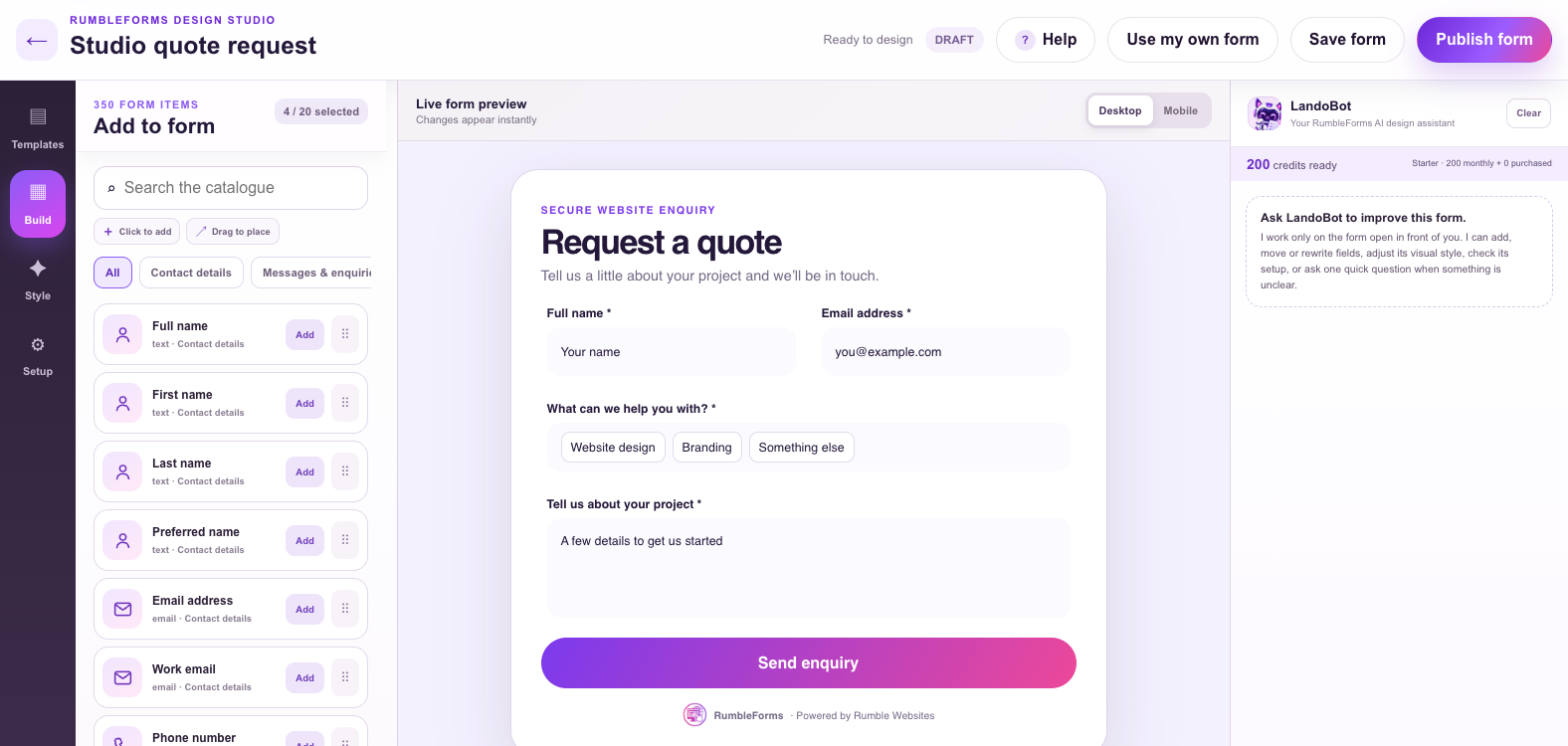
Choose from 350 ready-made items, including email and phone fields, dropdowns, checkboxes, date fields and long-answer boxes.
- Click to add an item or drag it where it belongs. Reorder fields by dragging or using the move controls.
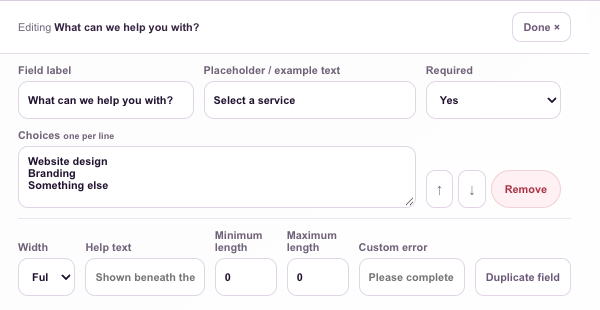
- Select a field to change its label, placeholder, choices and required setting. Starter and above add help text, half-width fields and custom validation.
Make it look like your website.
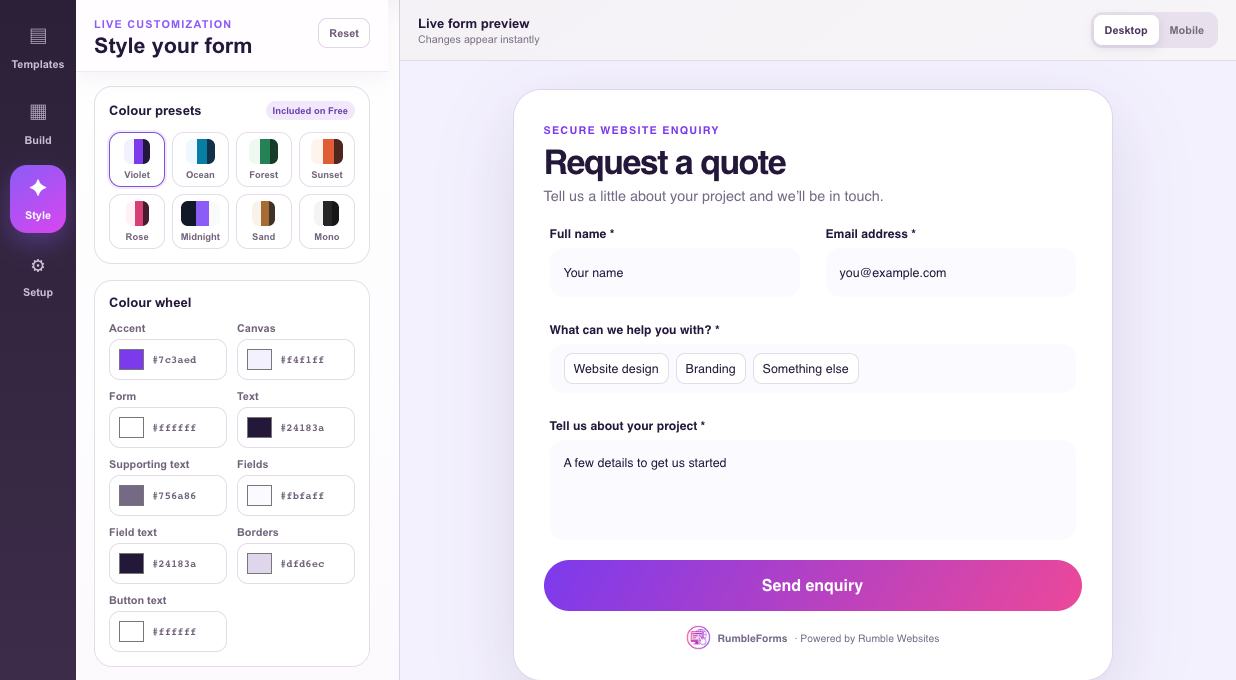
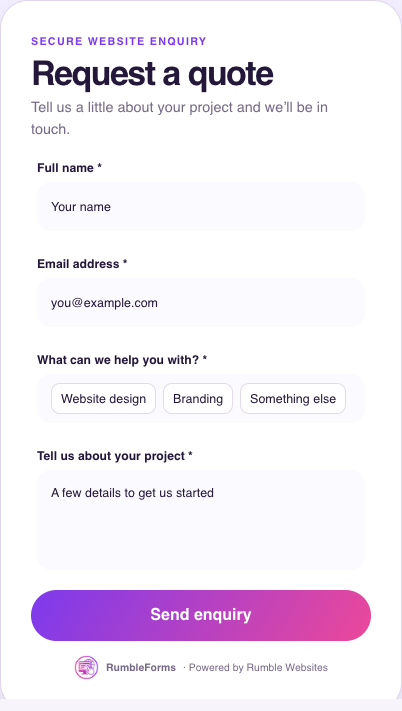
Pick a colour preset and texture, then see your changes as you work. Switch between Desktop and Mobile to check how the same form fits on a smaller screen.
- Give the form its own heading, introduction and submit button text.
- Starter and above add precise colour controls, fonts, spacing, layouts and a custom success message.
Give LandoBot a brief.
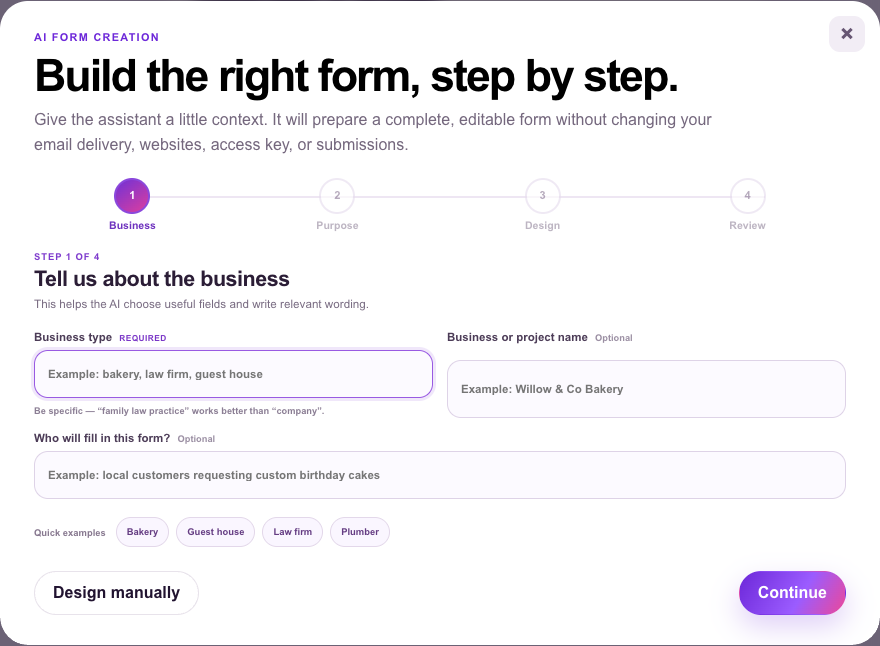
Use the guided AI flow to draft a form for your business, or open LandoBot on a saved form and ask for a specific change in plain language.
“Add a project type dropdown above the message field.”
- Review the proposed edits and credit cost before you approve a paid action.
- After approval, check the changes in your live preview and continue editing normally.
Put it on your site.
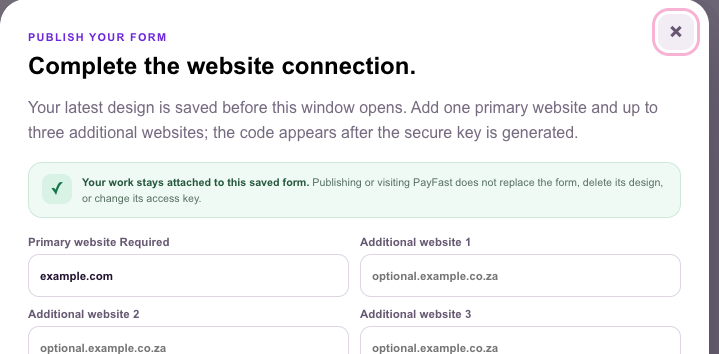
Select Publish form, add the website domains allowed to use it and generate the embed code. Paste that code into an HTML or embed block on your site.
- RumbleForms hosts the form and sends enquiries to the receiving email you chose. You can also view submissions in the form’s dashboard.
- Open and save the same design to update the hosted form without replacing its existing embed code.
Good to know before you build.
Ten common questions about designing, editing and publishing with the builder.
Build your first form Already signed up? Open My Contact Forms01 Do I need to know how to code?
No. The builder handles the form’s design and fields visually. To add the finished form to your site, copy the generated embed code into an HTML or embed block.
02 What kinds of forms can I build?
You can build contact forms, quote requests, booking enquiries, registrations, feedback forms and client intake forms. Choose the fields that collect the information you need.
03 Can I preview every template before choosing one?
Yes. All 500 templates are visible and previewable. Free can apply 50, Starter 250, Premium 450 and Professional all 500. Once you apply a template, you can edit its fields and style.
04 How many items can I add to a form?
Free allows up to 5 builder items per form, Starter up to 20 and Premium up to 50. Professional has no builder item limit. These limits are per form, not the size of the item catalogue.
05 Can I move fields and make an answer required?
Yes. Drag fields to reorder them or use the up and down controls. Select a field to change its label, example text, choices or required setting. A valid email field is needed to publish.
06 What can I customise on the Free plan?
Free includes colour presets and Clean, Paper and Dots textures. You can also edit the heading, introduction, button text and basic field settings. Starter and higher add precise colours, layout and type controls, help text and custom validation.
07 Can I see the form on a phone before publishing?
Yes. Select Mobile in the live preview to check the narrow layout, then switch back to Desktop to compare. Both views show the same design as you edit it.
08 Will LandoBot change my form without asking?
No. LandoBot shows the proposed changes and the credit cost before you approve a paid action. You can decline the proposal or check the result in the builder after it’s applied.
09 How do I embed a form on my website?
Open Publish form, enter your primary website and any additional approved domains, and generate the website code. Paste the code where the form should appear on your site. The visual form itself is hosted by RumbleForms.
10 Can I edit a form after it’s published?
Yes. Go to My Contact Forms, select the form and open the builder. Save your updates to the same form and the hosted design changes without needing new embed code.